

Inbox
An inbox that's tidy every day
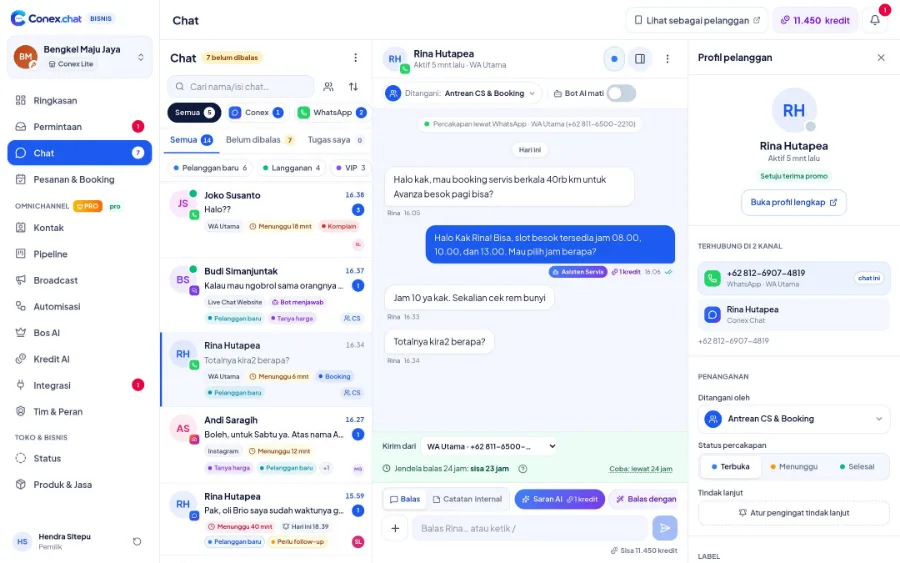
Every chat has a status, labels, and an owner. Internal notes keep context out of the customer's sight, quick replies speed up standard answers, and follow-up reminders make sure no prospect is forgotten.
- Plan
- Free
- In the dashboard
- Chat (inbox)
- Group
- Chat & Omnichannel
What it is
Labels, notes & reminders
A set of everyday tools in the Chat menu that keep every conversation clear: who owns it, how far along it is, and when the customer needs to hear from you again.
Who it's for
- Admins or CS agents who reply to dozens of chats every day
- Business owners who don't want important chats to get buried
- Small teams taking turns on a single inbox
- Sales reps who need to keep their promise to follow up with prospects
What you get
Labels, notes & reminders in Conex Bisnis
Labels
Tag chats as Pelanggan baru (New customer), VIP, Komplain (Complaint), or your own labels, then filter your inbox by label.
Chat status
Open, Pending, and Resolved, with a "Longest waiting" sort so the chats that have waited longest get answered first.
Internal notes
Notes inside the conversation for teammates, never visible to the customer.
Quick replies
Type "/" in the reply box to pick a saved answer.
Follow-up reminders
Set a reminder from inside the chat, and a notification pops up when it's due.
Chat transfer
Hand a chat over to a teammate or another team, history included.
How it works
Step by step in the dashboard
Menu names match business.conex.chat (in Indonesian).
- 1
Filter your inbox
In the Chat menu, filter by channel, staff, or label, then show only chats that are unanswered, yours, have reminders, or are resolved.
- 2
Change the conversation status
Choose Open, Pending, or Resolved. After you reply, Open changes to Pending, and goes back to Open when the customer replies.
- 3
Add a label
Pick a label from the profile panel next to the chat, or create a new one with its own color.
- 4
Leave an internal note
Switch the reply box to note mode to write a message for teammates, such as an order size or a price you promised.
- 5
Use a quick reply
Type "/" followed by a shortcut, pick one with the up or down arrows, then press Enter.
- 6
Set reminders
Enter a date, time, and short note. When it's due, a notification appears on the chat owner's dashboard.
Key settings
- Label list
- Label names and colors are shared between the inbox and the Kontak (Contacts) menu.
- Quick replies
- Each reply has a shortcut (lowercase letters, numbers, - or _) and text you can edit anytime.
- Chat list order
- Sort by newest chat, unread, or longest waiting.
- Chat owner
- Assign a chat to yourself, a teammate, or a team from the menu in each conversation.
Limits & rules
- Labels
- Up to 100 labels per business, with names of 1–30 characters. System labels can't be deleted.
- Quick replies
- Up to 100 quick replies per business, 1–1,000 characters each. Who can create and edit them: the owner, admins, and staff with permission to manage chats.
- Reminders
- Reminder notes of up to 200 characters. If the chat has no owner yet, the notification goes to the person who set the reminder.
- Change the sending number
- Chats can only be moved to a number or channel of the same type, for example from one of the business's WhatsApp numbers to another.
- Visibility
- Staff with the Agent role only see chats assigned to them; Supervisors also see their team's chats.
Customer profile beside the chat
The profile panel shows the customer's identity, labels, custom fields, deals, and conversations on other channels. One contact can be linked to several channels at once.

Illustration with sample data
Use cases
Used across many businesses
Workshops
A "Menunggu sparepart" (Waiting for parts) label and a reminder three days out to update the customer when the part arrives, with an internal note on the vehicle type and the issue.
Auto repair & automotive solutionOnline stores
Quick replies "/ongkir", "/ukuran", and "/retur" (shipping, sizes, returns) for everyday questions, plus a "Siap kirim" (Ready to ship) label so the warehouse team knows which chats to process.
Online store solutionClinics
Pending status for patients who haven't picked a slot yet, and a reminder the day before their check-up. Sensitive medical data stays out of the notes.
Clinic & healthcare solutionsIntegration with other features
Works together with other features
Problems it solves
This feature helps when…
Forgetting to follow up with prospects
Interested buyers never get contacted again.
See how to fix itChats pile up & replies are slow
Customers wait a long time because chats come in faster than you can reply.
See how to fix itCS team sharing one phone
One WhatsApp number is passed around between several admins.
See how to fix itMessy customer data
Contacts are scattered across phones, notebooks, and spreadsheets, with lots of duplicates.
See how to fix itComplaints go unhandled
Complaints get mixed in with regular chats and are handled too late.
See how to fix itForgetting customers' service schedules
Customers only remember a service when something breaks, and the business has no way to remind them.
See how to fix itFAQ
Labels, notes & reminders FAQ
Can customers see internal notes?
No. Internal notes are only visible to your team inside the conversation.
Are these tools available on the Free plan?
Yes. Labels, statuses, internal notes, quick replies, reminders, and chat transfers are available on every plan.
How are reminders sent?
As a dashboard notification, at the time you choose, to whoever owns the chat. If the chat isn't assigned yet, the notification goes to the person who set the reminder.
What does the Pending status mean?
You've replied and are waiting for the customer to respond. As soon as the customer replies, the chat goes back to Open.
Who can create quick replies?
The owner, admins, and staff with permission to manage chats. Every member who replies to chats can still use them.
How many labels can I create?
Up to 100 labels per business. Start with a few labels your team actually uses so the inbox stays easy to filter.
Can I reply from a different WhatsApp number?
Yes, as long as the destination number is the same type and connected to your business, for example both are WhatsApp numbers.
Related
Related features & solutions
Chat assignment & teams
Chats assigned automatically by rotation or by workload (Pro).
Learn more FreeContacts & segments
One contact across many channels, segments, custom fields, duplicate merging, CSV.
Learn more FreeProOmnichannel
Conex Chat, WhatsApp, Telegram & website Live Chat in one inbox.
Learn more TeamsCustomer service
Shared inbox, chat assignment, notes, and AI Suggestions.
See solutionTry Conex Bisnis for free
Register with your WhatsApp number, fill in your profile, and start receiving chats today.